
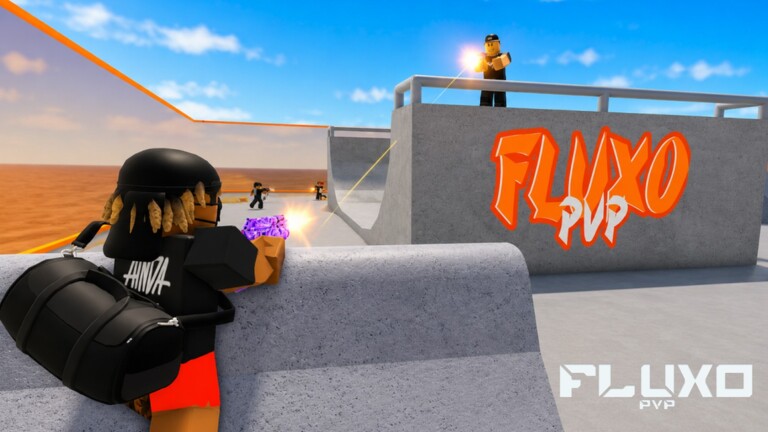
Mobile Fluxo PVP is absolutely viable - the official listing advertises phone support - but the default HUD fights you if you leave every button where the template dropped it. In a one-headshot ruleset, a buried fire button or accidental jump tap ends the round before your aim even matters.
This guide focuses on layout, thumb paths, and performance. Pair it with the Settings Optimizer so your frame time matches your finger speed.
Default mobile actions
| Action | Typical control | Mobile tip |
|---|---|---|
| Move | Left virtual stick | Keep stick low-left; avoid covering the gift/codes UI |
| Sprint | Sprint button | Place near left stick for thumb rolls into peeks |
| Jump / Roll | Jump button | Separate from fire - mis-taps equal free deaths |
| Look | Right drag zone | Larger zone = smoother tracking |
| Fire | Fire button | Right thumb priority; consider claw index fire |
| Reload | Reload button | High enough to avoid panic mis-fires |
Two, three, and four-finger layouts
Two-thumb play works for casual FFA, but serious duelists usually graduate to three-finger claw: left thumb move, right thumb look, right index on fire (or left index on jump). Four-finger adds a dedicated jump/roll finger so your look thumb never leaves the drag zone mid-fight.
Whatever you choose, spend a full AIMLAB session before judging the layout. The first ten minutes always feel worse than default - that does not mean default was better.
Gyroscope and touch hybrid
If your Roblox device settings allow gyroscope assist, use it for micro head-height corrections while thumbs handle large turns. Keep gyro strength low at first; overpowered gyro turns every vehicle bump into a missed headshot. Tablets can run lower gyro because the larger drag zone already helps tracking.
HUD vs Codes UI
The gift icon and Codigos ring matter for redeeming SORRYFORBUGS-style rewards. Do not cover the bottom-left with a giant custom stick. If your layout hides the gift icon, walk to the world Codigos interactable instead - see How to Redeem Codes.
Mobile performance habits
- Lock a stable FPS before raising graphics
- Close background video apps that steal thermal headroom
- Play landscape for wider look space
- Charge while playing if thermal throttling hits mid-session
- Use headphones to hear sprint footsteps when visual clutter spikes
Mobile-only ten-minute drill
- Two minutes: left-stick strafe only while tracking a static point
- Three minutes: fire-button presses without moving the look thumb off target
- Three minutes: jump-roll exits without losing right-zone contact
- Two minutes: live 1v1 focusing on not mis-tapping jump
When the layout feels invisible, move to How to Aim and Duels mode guides. Mobile players who master HUD discipline often outfrag lazy PC players who never learned to stop sprinting into held angles.
Match your new HUD with a stable graphics profile.
Open Settings OptimizerStack with PC friends using shared callouts from the Controls Overview so “rolling wide” means the same thing on every platform. Mixed-input lobbies punish selfish peeks harder than same-input stacks.